Hi there, welcome to the Clockify forum!
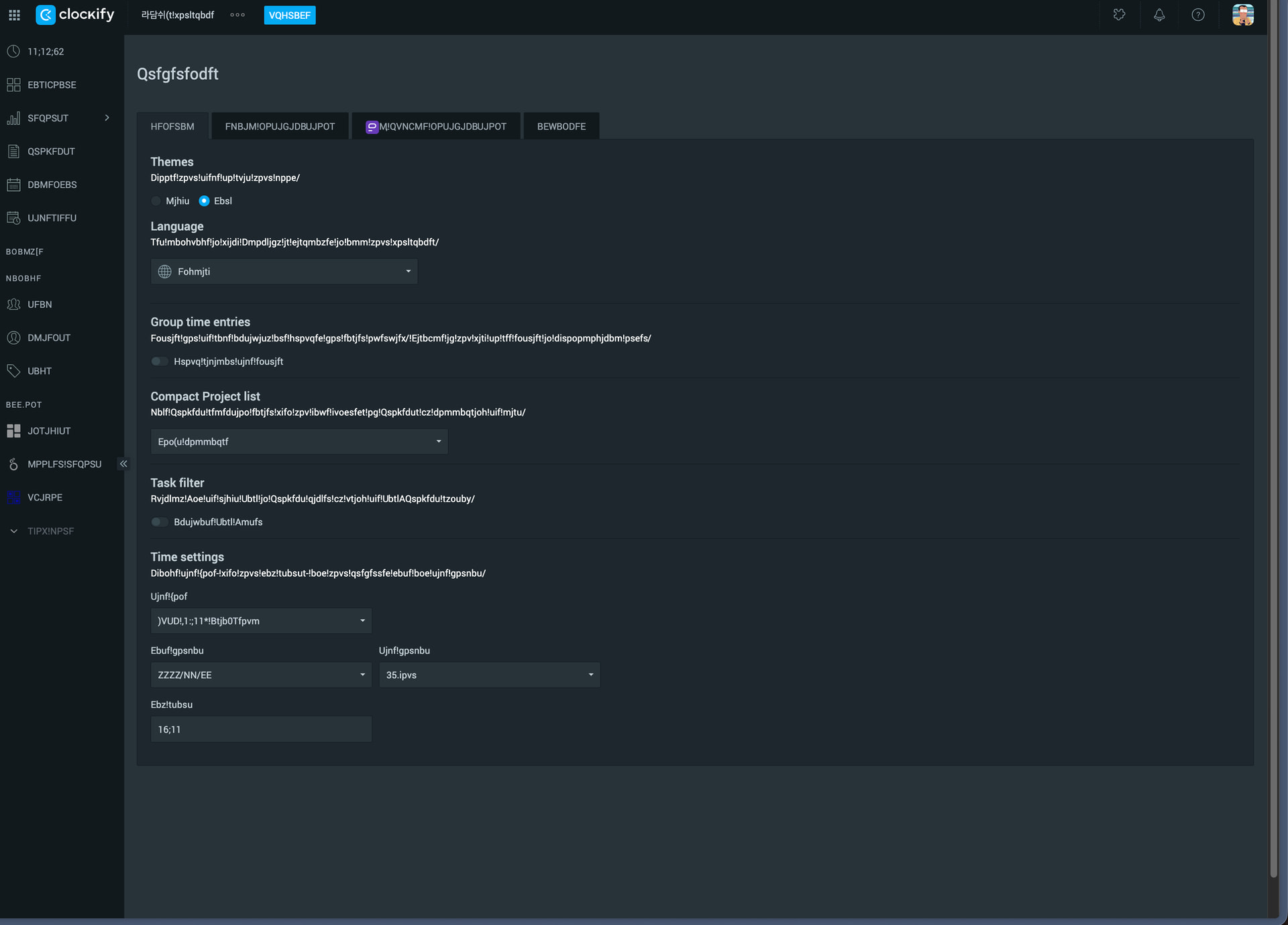
The issue you’re having is not Clockify-related, but is usually caused by browser extensions (grammar/translating ones) or incompatible fonts/encoding errors.
Please open Clockify in an incognito/private browsing window (as it opens without extensions by default) - so you can rule out extension and cache-related issues.
If the issue persists, here are the most common solutions based on different platforms:
1. Fix for Windows
-
Change Non-Unicode Language: Go to Control Panel > Clock, Language, and Region > Region > Administrative tab. Under “Current language for non-Unicode programs,” ensure it matches your system language (e.g., English).
-
Remove Conflicting Fonts: If the issue appeared after an update, a font might be corrupted. Try uninstalling new or duplicate fonts, particularly Roboto or Helvetica Neue, which are known to cause this issue in browsers and apps.
-
Restore Default Fonts: Go to Control Panel > Appearance and Personalization > Fonts > Font settings, and click “Restore default font settings”.
-
Reinstall/Update App: If it happens only in one app, uninstalling and reinstalling it can resolve corrupted installation files.
2. Fix for Mac
-
Remove Duplicate/Corrupted Fonts: The most common cause on macOS is duplicate Roboto or Helvetica Neue fonts. Open Font Book, look for duplicates (especially in the User folder), and remove them.
-
Restart/Re-login: A simple restart can fix font caching issues.
3. Fix for Browsers (Chrome/Edge/Brave)
-
Clear Cache & Cookies: Clear your browser data to remove outdated, wrongly encoded files.
-
Disable Extensions: Sometimes browser extensions can cause display issues. Try running in Incognito mode to see if the issue persists.
-
Check Font Settings: If using a browser, try changing the default encoding to UTF-8 in the settings or using an extension to fix garbled text.
4. General Solutions
-
Restart the App/Device: This clears temporary data issues.
-
Check for Software Updates: Windows Updates or app updates often patch font handling bugs.
-
Scan for Malware: In rare cases, malicious software can alter system files, causing text to appear as gibberish.
Hope this helps, cheers!