Ask questions, troubleshoot issues, and find solutions for Plaky boards, views, task dependencies, automations and much more.
Plaky is introducing a clearer way to organize Board Fields. Every Field on your Board is now either a predefined Field or a custom Field. The 3 predefined Fields (Status, Assignee, and Due date) power key Plaky features such as My Tasks and the Kanban View. Custom Fields, including the new Dropdown Field, let you track everything else your team needs.
This article covers:
-
What is changing?
-
Why is Plaky making this change?
-
What happens to my existing Boards?
-
What do I need to do?
What is changing?
Key updates include:
-
New predefined Fields: Status, Assignee, and Due date
-
A new Dropdown Field for categories, priorities, and other labels
-
The Person Field no longer assigns Items, so only the Assignee Field fills your My Tasks page
-
The option to convert Fields between predefined and custom types
-
New Boards created from scratch come with all 3 predefined Fields
Predefined Fields
Predefined Fields drive the core logic of your Board:
-
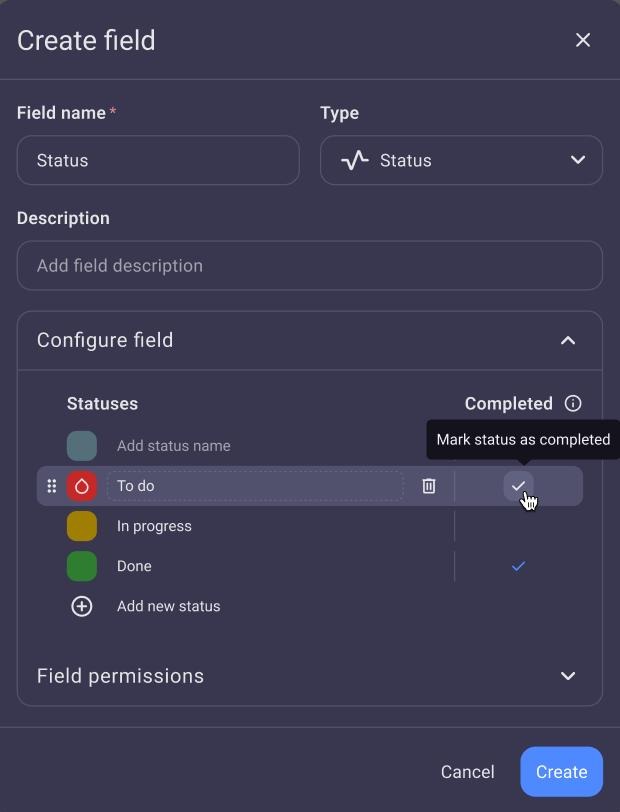
Status tracks the progress of an Item. It is the only Field where you can mark a status as completed
-
Assignee (previously Person) shows who is responsible for completing the Item. Only people in the Assignee Field see the Item on their My Tasks page.
-
Due date sets the deadline for an Item.
Predefined Fields follow a few simple rules:
-
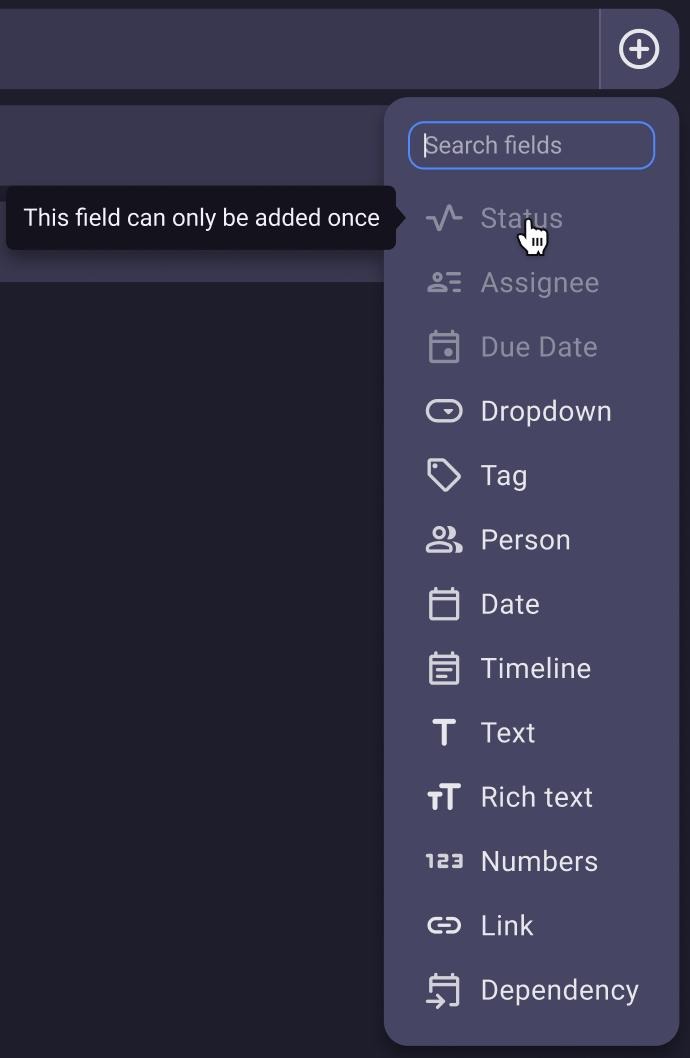
A Board can have only one of each predefined Field.
-
Predefined Fields are not mandatory. You can delete them and add them back later.
-
While a predefined Field is on the Board, it is disabled in the Add Field menu.
New Dropdown Field
The Dropdown Field works like the Status Field but has no completed status. Use it to categorize Items by priority, type, stage, or channel, without affecting progress tracking.
New Dropdown Fields come with 3 default options:
-
Empty
-
Option 1
-
Option 2
You can rename them, recolor them, and add new ones.
| Affected changes | Status | Dropdown |
|---|---|---|
| Field category | Predefined | Custom |
| Per Board | One | Unlimited |
| Completed status | Yes | No |
| Values are called | Statuses | Options |
| Default values | To do, In progress, Done | Empty, Option 1, Option 2 |
In the Status Field configuration, Options is now Statuses, and Add new option is now Add new status.
Assignee and Person Fields
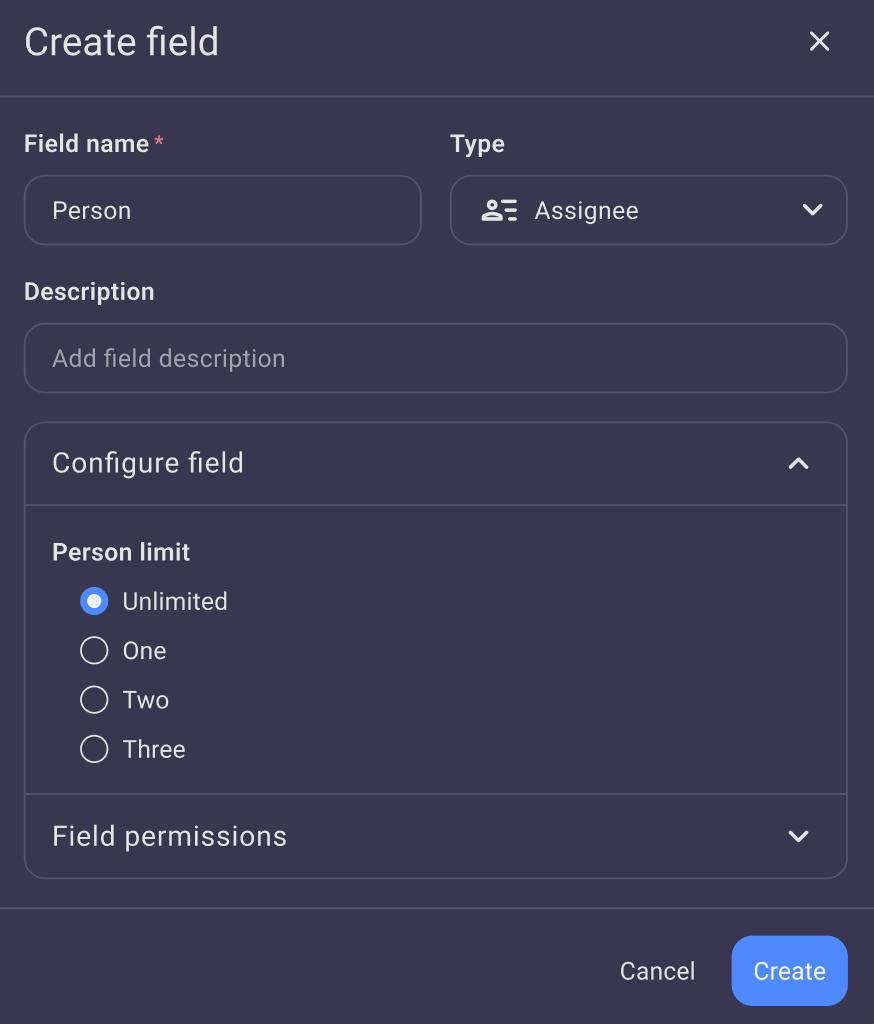
The Person Field is now a custom Field for secondary roles, such as Reviewer, Reporter, or QA tester. Adding someone to a Person Field no longer assigns the Item to them.
| Affected changes | Assignee | Person |
|---|---|---|
| Field category | Predefined | Custom |
| Shows Items in My Tasks | Yes | No |
| Notification | Assigned you to the Item… | Added you to the Item… |
| Conditional coloring conditions | Is assigned, is not assigned | Is added, is not added |
| Visibility restrictions | Not available | Available |
Convert Fields
To convert a Field, open the Field header dropdown and select Change Field type. You can convert:
| Predefined Field | Converts to and from |
|---|---|
| Status | Dropdown, Person, Tag, Text, Rich Text, Numbers, Assignee |
| Assignee | Person, Dropdown, Tag, Text, Rich Text, Status |
| Due date | Date, Timeline, Text, Rich Text |
If your Board already has the predefined Field you are converting to, a banner lets you know that the existing Field will be converted too. The existing Status Field becomes a Dropdown, the Assignee Field becomes a Person Field, and the Due date Field becomes a Date Field.
When you convert a Field to Status, the configuration opens right away so you can set up your statuses and choose which one marks an Item as completed.
Change across Plaky
-
My Tasks: Status and Due Date are selected by default in Board options. You can still choose a Dropdown, Date, or Timeline Field instead. When you change the assigned person, you can only pick people from the Assignee Field.
-
Kanban View: New Kanban Views are grouped by the Status Field by default. You can still group them by any Dropdown Field.
-
Import CSV and Move/Copy Item: Each predefined Field can be mapped only once. If the Field is already on the Board, the option is disabled.
-
Templates and Board duplication: Predefined and custom Fields stay the same when you save a Board as a template or duplicate it. Plaky templates have been updated to use the new Fields.
-
Activity log: Changes to predefined Fields are logged the same way as changes to any other Field.
Why is Plaky making this change?
Until now, Plaky treated every Field of the same type the same way. Many teams used the Status Field only to track progress and missed out on using it for categories or priorities. Others added several Person Fields for roles like Reviewer or QA tester. Because every Person Field counted as an assignment, those Items filled up the My Tasks page of people who weren’t responsible for completing them.
Separating predefined Fields from custom Fields gives every Board a clear, predictable structure. My Tasks, Kanban View, and other features always know which Field to use, and you’re free to customize the rest of your Board without disrupting your workflow.
What happens to my existing Boards?
Your existing Boards are updated automatically. If a Board has one Status, Person, or Date Field, that Field becomes the predefined Field. If a Board has several Fields of the same type, Plaky picks one based on its name:
| Field type | Becomes the predefined Field | Plaky picks | If no match or > 1+ | Other Fields of this type |
|---|---|---|---|---|
| Person | Assignee | The Field with “assignee” in its name | The oldest Person Field | Stay Person Fields |
| Date | Due date | The Field named “Due date”, then “Date” | The oldest Date Field | Stay Date Fields |
| Status | Status | The Field with “status” in its name | The oldest Status Field | Become Dropdown Fields |
What do I need to do?
Nothing is required. Your Boards will be updated automatically, and all your data stays in place.
We recommend that Board Owners take a few minutes to review their Boards after the update:
-
Check that the right Fields became your Status, Assignee, and Due Date Fields. If not, use Change Field type to convert to the correct ones.
-
Make sure the people responsible for each Item are in the Assignee Field, so the Items appear on their My Tasks page.
-
Review your My Tasks page to confirm which Status and Date Fields are used.
-
Use Dropdown Fields for priorities, categories and other labels that don’t track progress.
If you have any questions, contact our Support team or write bellow!